
Your Leasing Workflow, Your Way: 5 New ShowMojo Updates That Put You in Control
Sometimes the most valuable improvements are the ones that give you a little more control over how your leasing process works without overhauling everything you already have in place.
This post rounds up five recent ShowMojo updates that do exactly that.
Agent-Specific Gallery Availability & Assignment
For multi-agent teams, ShowMojo’s agent gallery links are a useful way to give each leasing agent a direct scheduling page that prospects can book from. But showings booked from an agent’s personal gallery could still be routed to other agents based on distribution logic.
That could mean an agent sends a prospect to “their” link, and the showing ends up assigned to someone else. But now you can prevent that, if you choose to.
A new toggle on each agent gallery page lets you lock both availability and showing assignments to that specific agent only.
When it’s enabled, prospects booking from that agent’s link will only see that agent’s available times — and the showing is guaranteed to go to them, bypassing all standard distribution logic.
This one was built directly from customer feedback, and it’s off by default, so your existing setup is completely unaffected until you’re ready to use it.
“No Availability” Messages — Rich Text & Listing-Level Customization
When a listing has no available showing times, what do prospects see? Until recently, the answer for most ShowMojo accounts was a plain-text message set at the company level — the same message for every listing, with no formatting or links.
Two things have changed.
- The “no availability” message now supports rich text, so you can add formatting and links to direct prospects to apply, contact your office, or get on a waitlist, rather than just leaving them with a dead end.
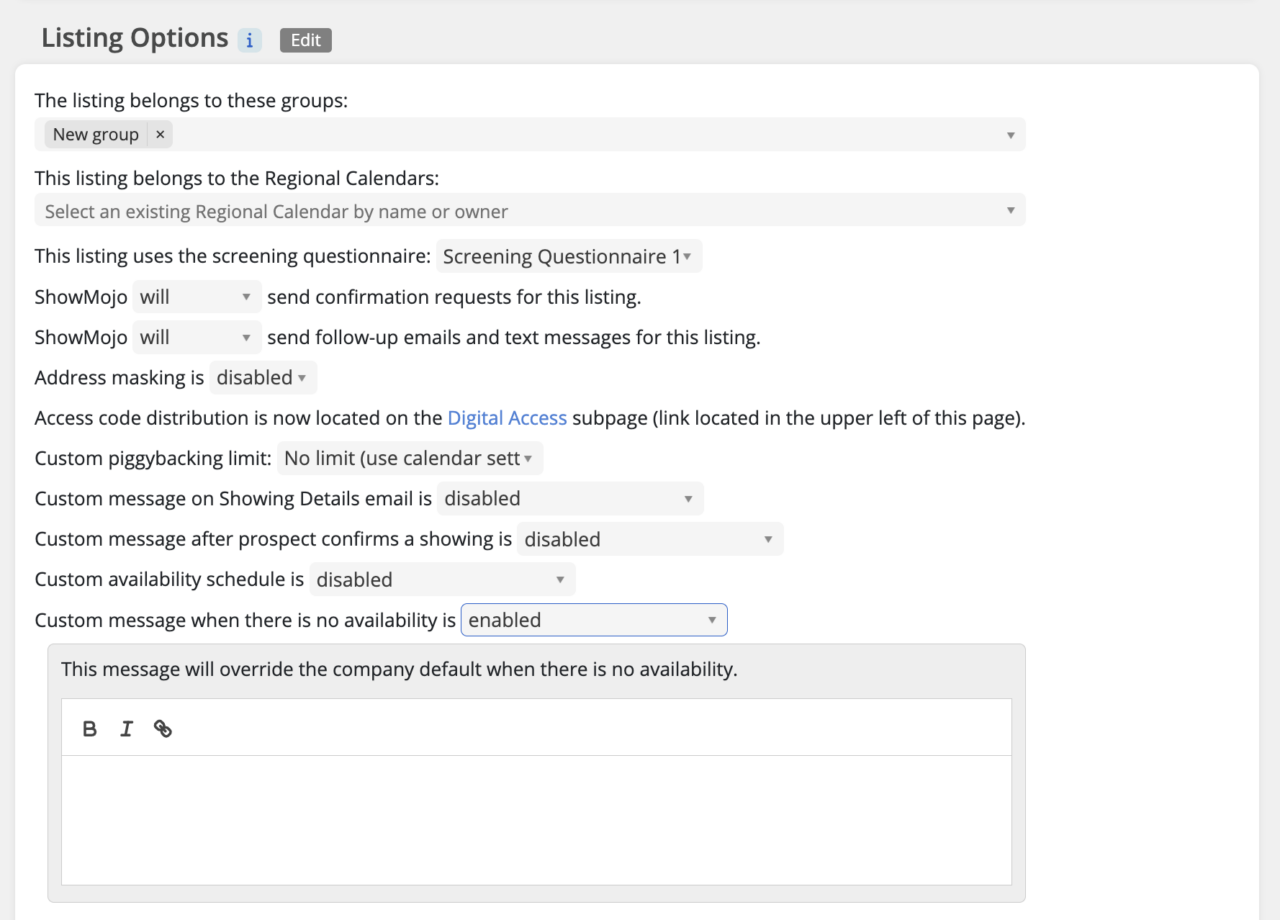
- You can now set a custom no-availability message at the individual listing level, overriding your company-wide default when a specific property warrants different messaging.
This is a simple way to make sure the right message reaches the right prospect at the right moment. Just head to the Listing Options section, click edit, and enable custom messages when there is no availability.
Prospect Feedback Tab on the Listing Page
Prospect feedback has always been available in ShowMojo, but finding it required navigating away from the listing. That’s changed.
A new Feedback tab now lives directly on the listing page, giving property managers a centralized view of all prospect ratings for that unit. Feedback cards display ratings across five categories — attendance, presentability, rent, showing agent, and likelihood to apply — along with the showtime, prospect name, and assigned agent.
If you’re trying to figure out why a unit isn’t converting, or evaluating how your showing agents are performing on a specific property, this is now the first place to look.
Piggybacking Limit Can Now Be Set at the Listing Level
ShowMojo’s piggybacking setting lets multiple prospects book the same showing time — useful for high-demand properties. Previously, this was a calendar-level setting that applied broadly.
Now you can set a custom concurrent showing limit directly on an individual listing, overriding the calendar default when a specific unit needs tighter (or looser) control. No need to adjust your broader calendar settings.
To update this setting, head to Listing Options, click edit, and choose your desired limit.
Limit In-Person Showings Per Prospect
A new setting on the Schedule Settings page lets you cap how many in-person showings a single prospect can book for the same listing. When a prospect hits your limit, they’re blocked from scheduling and prompted to contact you directly.
The default is 10, but it’s fully adjustable. For properties where repeat no-shows or unusual booking patterns have been a problem, this gives you a simple guardrail.
More Control, Less Manual Work
These updates give you more precision over how ShowMojo behaves, at the level that makes sense for your operation — whether that’s a specific agent, a specific listing, or a specific type of prospect behavior.
All five are live now. Log in to explore them in your account settings, or reach out to our team if you have questions about how to put them to work.
Get Leasing Automation tips and solutions right to your inbox.